
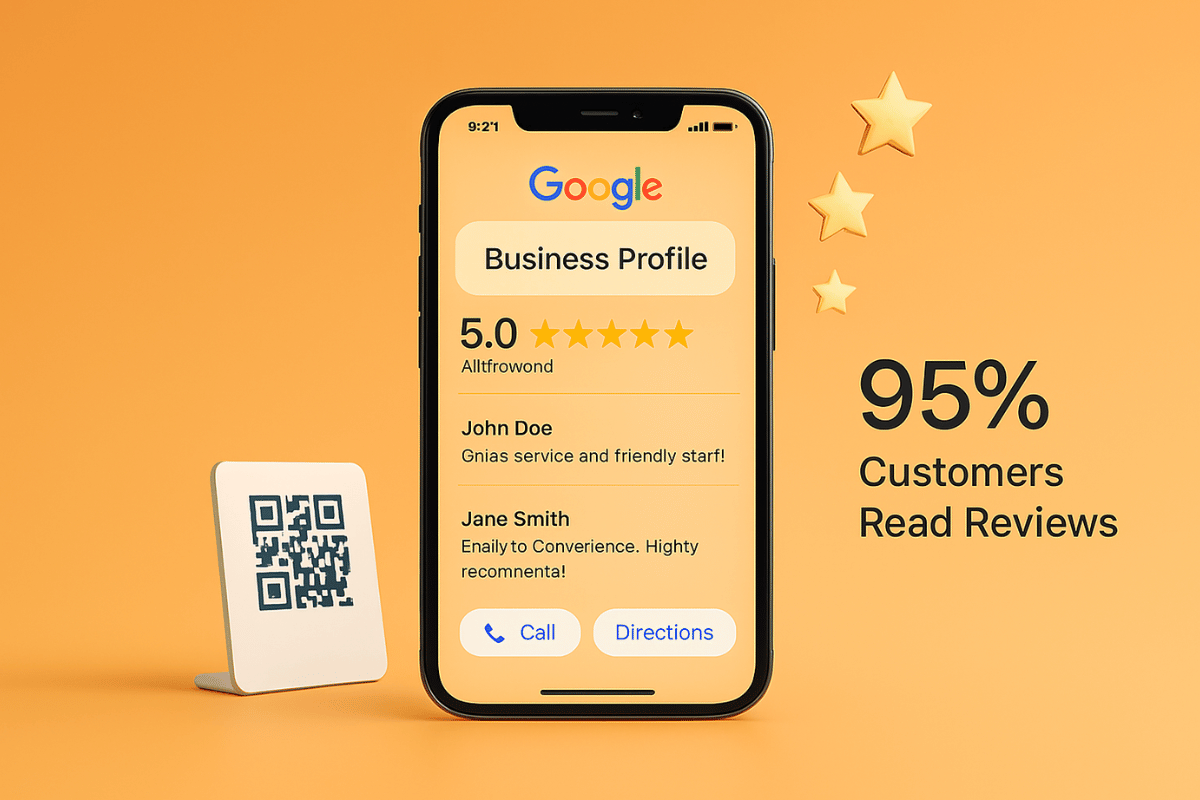
By 2026, 95% of customers will read reviews before making a purchase, making a strong reputation on Google Business Profile (formerly Google My Business) absolutely crucial for success in local search. Many businesses face the challenge that satisfied customers often forget to leave feedback, while competitors are actively building their online presence. Getting more Google reviews isn’t about begging; it’s about creating a simple, automated process that makes it incredibly easy for your customers to share their experiences. This guide will provide you with actionable, ethical strategies to significantly increase your review count without violating any policies. We’ll discuss how to ask, when to ask, and how to leverage QR codes to turn satisfied clients into your best marketers.
Table of Contents
Why You Need to Get More Google Reviews in 2026
Google reviews are a major factor for local SEO and “map pack” rankings. In 2026, Google will rely on “prominence,” meaning how well-known your business is, with the number, frequency, and recency of reviews being key factors.
While there’s no single “magic number,” any business should aim for at least 10 to 20 Google reviews to establish basic credibility, and a minimum of 5 reviews are needed for them to appear in the Knowledge Panel. More reviews are crucial because they directly improve local SEO rankings, significantly increase customer trust among Google users conducting research, and signal an active, trustworthy business.
Why are more Google reviews important?
Better search rankings (Local SEO): Google favours businesses that consistently receive reviews, helping you appear in the top 3 results (Local 3-Pack).
Increased trust and credibility: Customers typically read at least 10 reviews before trusting a business. More reviews make your rating more credible.
Higher click-through rate: More positive reviews lead to more clicks to your website or more calls to your business, increasing revenue.
Competitive advantage: Having more reviews than your local competitors makes your business more appealing.
Trust and Conversion: 88% of consumers trust online reviews as much as personal recommendations.
Insights: Reviews provide free, authentic, and honest customer feedback.
What Happens If You Don't have enough Google reviews
Without a steady flow of fresh reviews, your business faces significant disadvantages in 2026:
Not having enough Google reviews or having very few reviews, can be a major obstacle to growing your online business. Think of Google reviews as today’s “word-of-mouth” marketing, proving that your business is trustworthy and reliable.
Not appearing in local search results: You lose “map pack” spots to competitors with higher review velocity.
Lack of trust: Customers assume you are either new, not popular, or not trustworthy.
Lower conversion rates: Potential customers choose competitors with more recent, positive feedback.
Stagnant ranking: Google considers your profile “inactive,” leading to a drop in rankings.
- When someone searches for “products or services near me,” Google displays a list of businesses (“local pack”).
The impact: Google uses the number of reviews and their scores to determine how popular a business is. If your competitor has 50 reviews and you only have 3, Google will assume your competitor is more popular and rank them higher in the search results, making it harder for new customers to find you.
- More than 90% of people hesitate to buy something that has no reviews.
The impact: Without reviews, customers might think you’re unprofessional, that your business is closed, or that it’s not doing well. They are more likely to click on a competitor with a 4.5-star rating and dozens of reviews than on a business with no star rating.
- Google values recent feedback. If your last review was a year ago, it signals to customers and Google that you may no longer be active.
The impact: Consistent, recent reviews demonstrate that you are actively engaged with your customers.
- When you have very few reviews, a single negative comment can have a huge impact.
The impact: When a business has very few reviews, a single negative comment carries disproportionate weight, significantly lowering the average rating and creating a false impression of poor quality. This lack of social proof means potential customers will place more trust in that single complaint than in the business itself, leading to a significant loss of credibility, reduced search visibility, and lost potential revenue.
Benefits of increasing Google reviews

Increasing Google Reviews improves your business’s visibility on Google Maps and search results, builds trust with new customers, and boosts local search rankings (SEO). More reviews act as social proof, making your business more reputable and more likely to be chosen over competitors.
Increased visibility: More reviews make your business stand out in search results and on the map.
Builds trust and credibility: Positive reviews act as personal recommendations, making customers trust your business.
Improves local SEO: Google ranks businesses with more, high-quality reviews higher, which leads to more organic traffic.
Influences purchasing decisions: Higher star ratings directly lead to more clicks and customers choosing you over competitors.
Valuable customer feedback: Reviews provide honest, free, and actionable feedback to improve your product or service.
Free marketing content: Positive customer comments serve as valuable testimonials to enhance your reputation.
Consistently increasing Google reviews is a low-cost way to build a strong reputation and increase sales.
Next, we are going to tell how to increase reviews, that too in an easy way.
Top 21 Easy Ways to Get More Google Reviews
1. Optimization Strategies to Increase Reviews:
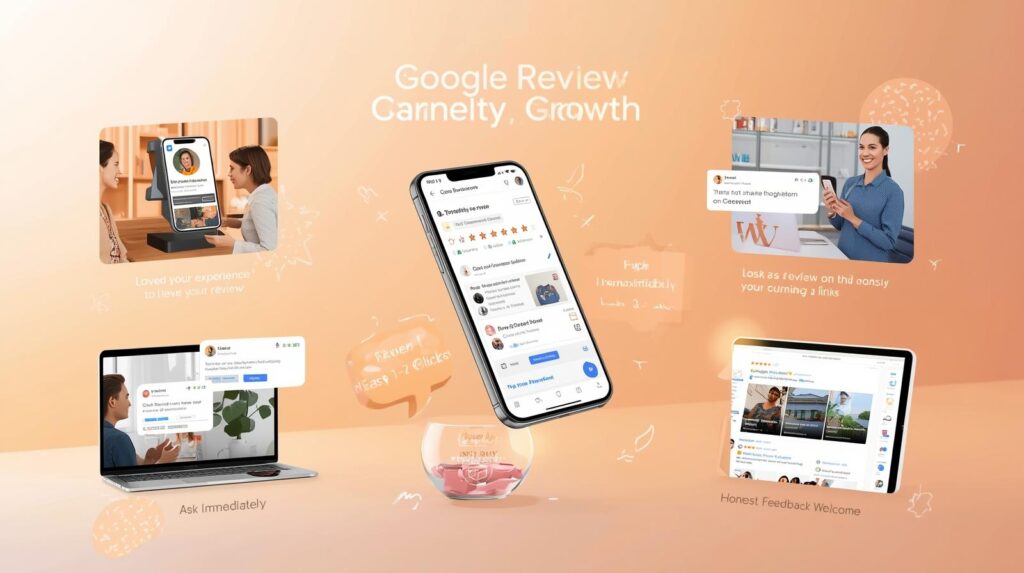
To increase Google reviews, focus on simplifying the process by providing direct links via SMS/email immediately after service, training staff to inquire personally, and using QR code signage. Respond to all reviews to build trust, and ethically incentivize honest feedback (e.g., small, unconditional rewards).
Top Optimization Strategies & Examples:
Create a Direct “Review Link” QR Code: Generate a QR code in your Google Business Profile (GBP) and place it on physical checkout counters, invoices, or business cards.
Example: A restaurant places a, “Loved your meal? Scan to share your experience” QR code on the table tent.
Automate post-purchase SMS/Email: Send a follow-up message within 24 hours of service, with a direct link to the review form.
Example: “Hi {name}, thanks for visiting! Click here to share your thoughts on Google: [direct link]”.
Train Staff to Ask Verbally: Encourage in-person, personalized requests after a positive interaction.
Example: “If you enjoyed the service today, I’d really appreciate it if you left a review for us on Google
Leverage Email Signatures: Add a clickable “Review Us” link to all employee email signatures.
Utilize Google Marketing Kit: Use Google’s marketing kit to create posters and stickers to promote reviews on-site.
Respond to All Reviews: Reply to both positive and negative reviews to show potential customers that you are engaged and care about feedback.
Use “Before/After” Photos for Context: Encourage customers to add photos of their experience, which increases trust and visibility.
Run a Non-Contingent Incentive Campaign: Offer a small reward (e.g., entry into a raffle or a small, future discount) for leaving a review, regardless of whether it is positive or negative, to stay within Google’s policy.
Key Takeaways:
Timing is everything: Ask immediately after the positive experience.
Make it easy: Only 1-2 clicks maximum to leave the review.
Don’t buy reviews: This can lead to your account being penalized.
2. Create a direct Google review link

The most effective, easy, simple and straightforward way to increase the number of reviews for your business is to create a direct Google review link. This is a link that opens directly to the rating screen.
Customers won’t have to search for you. Go to your business profile and click on “Get more reviews” to create a short URL and copy the link.
Example link: bit.ly/Review[Your Business Name]
How to Make the Link “Short & Sweet”:
The default link can be long and clunky. Make it look professional:
- Copy your long link.
- Go to a free link-shortener site like Bitly or TinyURL.
- Paste the long link and generate a custom short link.
How to Use the Link to Increase Reviews:
Now that you have the link, share it where customers are most likely to see it:
- Email Signatures: Add a line to your email signature: “Enjoyed our service? Leave us a review here!”.
- Post-Purchase Email: Send a “Thank You” email 1-2 days after a sale, saying: “We’d love to hear your feedback. Please share your experience here: [Link]”.
- WhatsApp/SMS: If you communicate with clients via text, send a personalized message with the link.
- QR Codes for In-Person: Create a QR code (using a site like Canva or QR Code Generator) from your link. Print this code on business cards, receipts, or table tents. Customers can scan it with their phones instantly.
- Website Footer: Add a “Review Us” button on your website’s homepage or footer.
3. Generate a QR code for instant access
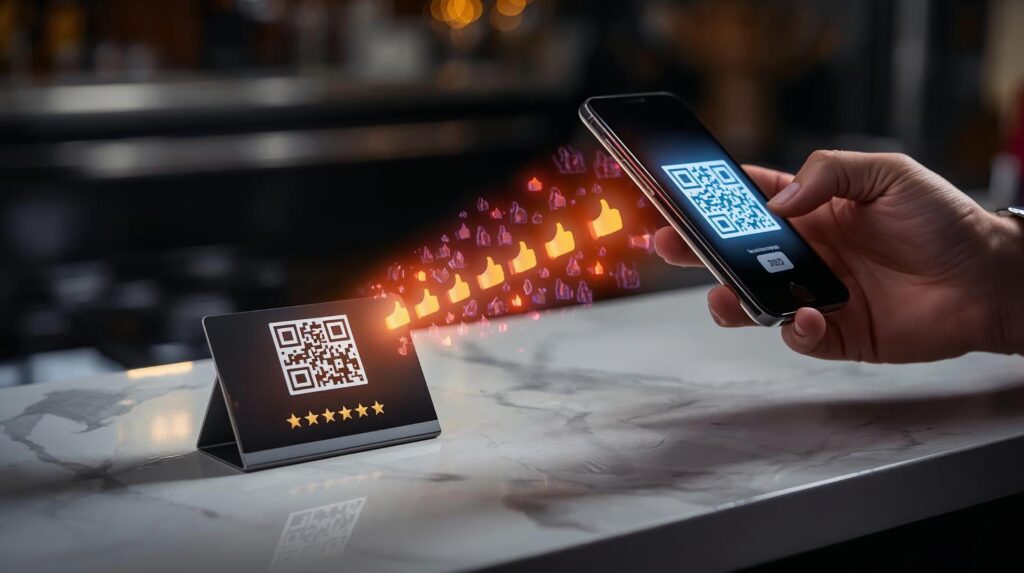
Boosting Google reviews with QR codes is the fastest, easiest, and most immediate way to improve your online reputation and get more reviews. Customers don’t need to search for your business; they can simply scan the code and leave feedback in seconds.
Place the QR code at your checkout counter, on receipts, in your office, or on your service vehicles.
Generate a QR code:
We briefly explained how to create a QR code earlier; now let’s understand it in a little more detail:
- Go to a free QR code generator site (such as Canva, QR Code Monkey, or a dedicated site like QRCodeChimp).
- Select the URL option.
- Paste your Google review link.
- Important: Add your company logo in the center and use your brand colors to make it look professional and trustworthy.
- Add a call to action (CTA): Include text such as “Scan to review us” or “Rate your experience.”
- Download the code as a PNG or PDF file.
- Test the code: Crucial step: Scan the generated code with your phone’s camera to ensure it goes directly to the “Write a review” popup on your Google Business Profile.
Strategic Placement (Where to use it):
This was briefly mentioned earlier; now we discuss it in a little more detail.
- At the point of sale/checkout: A table tent, small sign, or sticker near the cash register is the best place.
- On printed menus/brochures: Perfect for cafes, restaurants, and salons.
- On invoices/receipts: Print it directly on the paper receipt.
- On product packaging: For e-commerce, place it on the box or a thank-you card.
- On staff uniforms/badges: A small QR code on a staff member’s badge for quick, in-person requests.
The key to success is showing the code to the customer when they are most likely to be happy.
4. Use Automated SMS Requests

Automated SMS requests are one of the most effective ways to increase Google reviews because text messages have a very high open rate (over 90%), and customers can provide feedback in just seconds by simply clicking on a link. By automating this process, you avoid the tedious, manual task of requesting reviews from each customer individually.
Instead of manually texting customers, you use a platform (such as Podium, Textedly, Birdeye, or your CRM) that connects to your customer data.
- Trigger: A “trigger” event occurs (such as a service being completed, an invoice being paid, or an appointment ending).
- Action: The software automatically sends a text message 1-24 hours after the event.
- Link: The text message contains a direct link to your Google review page.
Create your own message template:
Keep it short, personal, and friendly.
- Template Example 1: “Hi [Name], thank you for visiting [Business Name]! If you have a minute, we would love for you to leave us a quick review: [Short URL] Thank you!”
- Template Example 2: “Hi [Name], thanks for choosing [Business Name]! If you enjoyed our service, would you take 60 seconds to leave us a quick review? [Link]”
Set the timing (“Golden Hour”):
- Services (Hair, Auto): Send 1-2 hours after their appointment.
- Retail/Shipping: Send 1-3 days after delivery.
- Avoid: Late night or early morning. Only send during business hours
.Once the automation is running, monitor the results to see if customers are clicking.
5. Use WhatsApp Automated message requests

The Setup (Preparation):
- Get your Google Review Link: Go to your Google Business Profile, find the “Get more reviews” section, and copy your short URL.
- Use a WhatsApp automation tool: Sign up for a service that supports WhatsApp automation (such as Spreadly, Wati, GoHighLevel, or a tool integrated with your POS/Shopify).
- Set up the WhatsApp Business API: You’ll need an approved Business API account to send automated messages, ensuring compliance with WhatsApp policies.
The Automation Process (How it Works):
- Trigger event: A customer completes a purchase, completes a service, or is added to your system.
- Automatic delay: The system waits for a predetermined time (e.g., 2 hours for a restaurant, 3 days for product shipment) to ensure the experience is recent but complete.
- Message sending: An automated WhatsApp message is sent to the customer with your link.
- Follow-up if needed: If the customer doesn’t respond, the system can automatically send a polite reminder after 3-5 days.
Message (Drafting for Success):
- Template Example: “Hi {name}, thank you for visiting [Business Name]! We hope you enjoyed your experience. Could you take 30 seconds to share your thoughts on Google? It helps us a lot: [Link]”
- Use a button: Instead of a link, use a “Rate 5 Stars” button that takes them directly to your Google review page to make it easier.
Keep the message personal, short, and friendly.
6. Send Post-Purchase Emails
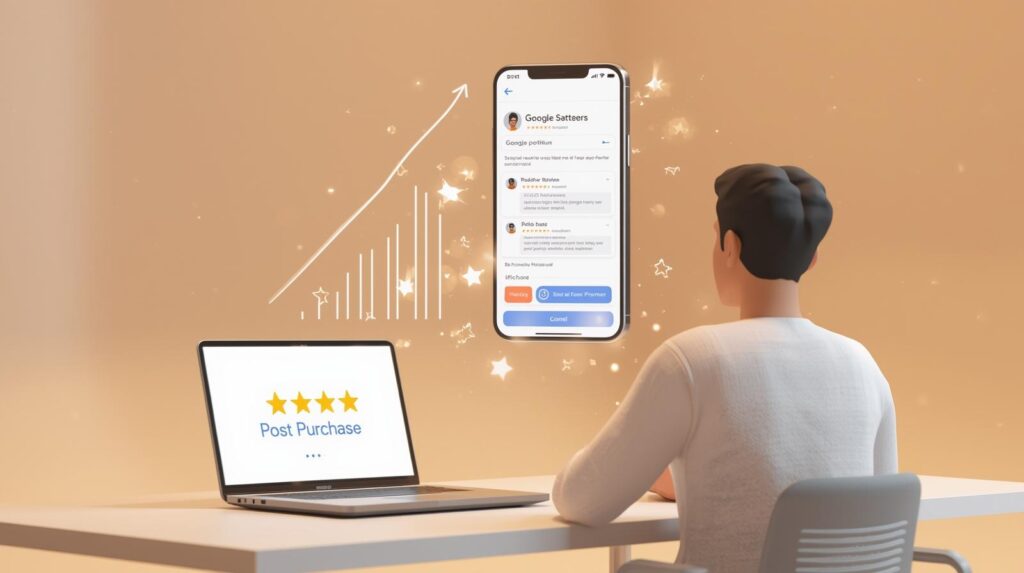
Getting more Google reviews via email is an effective way to improve your business’s reputation and local SEO. The key is to make it easy, timely, and personal. 60-70% of customer reviews come from follow-up emails.
Preparation (before sending):
Create a direct review link: Go to your Google Business Profile, click “Get more reviews” or “Share review form,” and copy the short URL (e.g., bit.ly/yourbusiness). Don’t just send them to your website’s homepage.
Set up automation (optional but recommended): Use your email system (Mailchimp, CRM, Square, Shopify) to automatically send emails 1-3 days after a purchase so you don’t forget.
Simple Email Template:
Subject: How did we do, [Customer Name]?
Hi [Customer Name],
Thank you for purchasing [Product/Service]! We hope you love it.
We are a small business, and your feedback helps us grow. If you have 60 seconds, would you mind sharing your experience on Google?
Button: Leave a Review Here
Thank you for your support!
best regard
[Your Name]
7. Add "Review Us" button to your website
To increase Google reviews, create a “Review Us” button using your direct review link from Google Business Profile Manager, and then embed it on your website. Place this button prominently in the header, footer, or on a specific page to make it easy for customers to click and leave feedback.
- Get Your Direct “Review Us” Link:
- Access your profile: Sign in to your Google Business Profile Manager.
- Find the link: Locate the “Get more reviews” card or the “Ask for reviews” button on your dashboard.
- Copy the link: Copy the direct URL, which typically looks like https://g.page/r/[YourBusinessName]/review.
Create the “Review Us” Button:
- Option A (WordPress/CMS): Use a plugin like EmbedSocial or a button block to add a clickable image or button to your site.
- Option B (HTML/Code): Add a simple HTML link to your website: <a href=”YOUR_LINK_HERE” target=”_blank”>Review Us on Google</a>.
- Design Tip: Ensure the button is eye-catching, mobile-friendly, and placed prominently, such as in the header, footer, or on a dedicated testimonial page.
Optimize strategic placement:
- Place the button on the homepage, the post-purchase “thank you” page, or in the website footer.
- Include a call-to-action such as “We would love your feedback!”
8. Social Media Strategies for increase google reviews

- Share a direct review link: Generate your unique Google review URL from your business profile and share it directly on Facebook, Instagram, Twitter, and LinkedIn.
- Showcase testimonials: Post screenshots of glowing 5-star Google reviews on Instagram Stories, Reels, or Facebook posts to build trust and encourage others to leave similar feedback.
- Use compelling CTAs: In your social media captions, directly ask followers to “leave a review” and explain how it helps your business.
- Leverage video and visuals: According to GMB Radar, create engaging graphics or short videos that highlight positive experiences along with your review link.
- Automate sharing: Use tools to automatically post your new Google reviews to your social media channels.
- Create highlighted stories: On Instagram, create a dedicated “Reviews” highlight story with your direct review link for easy access, according to Trustt.
By actively promoting your Google Business Profile on social media, you can turn followers into reviewers and improve your local search visibility.
9. Responding to Google reviews

Responding to Google reviews is a free and highly effective way to show customers that you care, build trust, and encourage more people to leave feedback. Studies show that businesses that consistently respond to reviews can receive up to 12% more reviews and have higher ratings.
How Replying Leads to More Reviews:
- Shows you’re active: When you respond, Google sees that your business is active and engaged, which can improve your local search rankings (making you easier to find).
- Encourages others: New customers are more likely to leave reviews if they see that you appreciate, read, and respond to feedback.
- Builds trust: 93% of customers expect businesses to respond to reviews, and 41% prefer businesses that respond to all feedback.
- Turns a negative into a positive: A thoughtful, helpful response to a bad review can encourage a customer to update or delete it.
Best Practices for Responding:
- Be fast: Aim to respond within 24 to 72 hours.
- Be personal: Avoid generic, “cookie-cutter” responses. Call the customer by name and provide specific details from their review.
- Be positive and professional: Always be polite, even if the review is inaccurate. Keep it short and sweet.
- Use keywords: Subtly include your business name, city, or specific service (e.g., “I’m glad you liked our dry cleaning service in downtown Chicago”) to increase your search visibility.
Respond to Different Types of Reviews:
- For Positive Review (5 Stars)
- Thank them: Genuinely thank them for their time.
- Highlight positives: Mention a specific product or service they enjoyed.
- Encourage them to come back: Invite them to try something new.
Example: “Thanks, Sarah! We’re so glad you enjoyed the pizza. We can’t wait for you to come back to try our new dessert menu!”
- For Negative Reviews (1-3 Stars)
- Don’t panic: Calm down a bit before responding.
- Apologise and show empathy: Acknowledge their disappointment, even if you don’t agree with their thinking.
- Take it offline: Offer a solution (such as a refund or rework) and ask them to contact you privately (by phone/email) to resolve it.
Example: “Hi Mark, I’m sorry to hear that your experience didn’t meet your expectations. We take this seriously and will make it right. Please contact us at [phone/email] so I can discuss it myself.”
- No-comment review (stars only)
- Say Thank You: Even without text, thank them for the 5-star rating.
Example: “Thank you for the 5-star rating! We appreciate your support.”
By following these steps, you demonstrate that your business is responsive, professional, and committed to its reputation, which naturally leads to more reviews.
10. Increase Google reviews with the right description
Writing a Google Business Profile (GBP) description that gets reviews quickly and frequently requires combining SEO-friendly keywords with an engaging story that inspires customers to share their experience. A good description builds trust, and a trustworthy, well-informed customer is more likely to leave a positive, detailed review.
Structure for Engagement:
Preload important information: Only the first 250–300 characters of your 750-character limit will be visible before the “Read More” button. Quickly describe your USP (Unique Selling Proposition) and what you do.
3-Parts Structure of Description:
Opening (0-250 characters): Who you are, where you are, and your core, high-value service.
Body (250-600 characters): What sets you apart (e.g., “Family-owned,” “Fast emergency service,” “24/7 availability”).
Call to action (600-750 characters): A subtle hint to add at the end, such as “Visit us to experience the difference.”
Weave in “Review-Driving” Elements:
To get more reviews, your description should set expectations for a great experience.
State your “why”: Briefly describe your mission, passion, or history. Personal stories or a focus on community create emotional connections that motivate people to provide positive feedback.
Highlight trust signals: Use words like “licensed,” “bonded,” “insured,” “expert,” or “certified.”
State-specific deliverables: Instead of “we clean,” say “we provide deep, eco-friendly, and careful home cleaning.”
Examples of High-Converting Descriptions:
Service Area Business (e.g., Plumber): “[Business Name] provides 24/7 emergency plumbing service in [City] and surrounding areas. Our licensed technicians specialize in fast and reliable repairs, from burst pipes to water heater installations. We pride ourselves on honest and expert service. Experience the [Business Name] difference and share your feedback with us!”
Physical Location (e.g., Coffee Shop): “[Business Name] is a cozy, family-owned coffee shop in [City]. We serve locally roasted coffee, homemade pastries, and plant-based snacks in a great location. Whether you’re working or relaxing, our team is here for you. Come in today and tell us your favourite drink.”
What not to do:
Google will not approve or may suspend profiles that violate these rules:
No Links/URLs: Never include website links, email addresses, or phone numbers in the description.
No Promotional Sales: Don’t write “50% off!” or “Best Price in Town!”
No Keyword Stuffing: Don’t write “Best Plumber, City Plumber, Cheap Plumber.”
Final Tips to Accelerate Reviews:
Update regularly: Refresh your description to showcase new services or milestones.
Use the “Posts” feature: The description remains static, but use Google Posts to showcase recent client wins and ask for reviews, which serves as a dynamic complement to your description.
Use the “Q&A” feature: Fill your Q&A section with common questions, and answer them with your USP to build trust.
Summary Checklist
Goal | Action |
Visibility | Include primary category + city + service |
Trust | Add USP (e.g., “Family-owned,” “24/7”) |
Action | Include a soft CTA (e.g., “Visit us,” “Experience the difference”) |
Poli | Keep under 750 characters, NO links |
11. Increase reviews with Google Business Profile posts

Increase Google reviews by posting directly to your Google Business Profile (GBP). Posting regular updates, photos, and Q&As keeps your profile active, making it easier for customers to trust and review your business.
Create “Review Request” Posts: Use the Post feature to share a “What’s New” or “Offer” update highlighting customer satisfaction.
Example: Post a photo of a happy customer/team with the text: “Loved your experience? Help a local business grow! Click below to leave us a review [Link]!”.
Share Positive Reviews: Repost high-quality text reviews from customers as a post, tagging the service or product mentioned.
Example: “We love hearing from our clients! ‘Best service in town’ – Thanks, Jane!”
Use the “Get More Reviews” button: Access your direct review URL from your GBP dashboard and easily share it in posts, emails and SMS.
Use QR codes in posts: Create a QR code using your review link and post it as a photo so customers can scan it and leave a review directly.
Leverage Q&A for reputation: Post and answer frequently asked questions yourself, encouraging customers to add their experiences in the Q&A section.
Key Tips:
Reply to all reviews: Show that you value feedback to encourage more.
Keep it simple: Use a clear, concise CTA like “Click to leave a review”.
Be compliant: Do not offer incentives for specific star ratings
Asking for Google reviews by posting on your Google Business Profile (GBP) is perfectly fine and encouraged, as long as you don’t offer incentives like discounts or gifts in return. Requests should be neutral and reflect genuine customer experiences.
Direct link: Use your unique Google review link or QR code to simplify the process.
Be polite: Present the request as a way to improve your service, not just to boost your score.
Avoid perks: Never offer money, discounts, or freebies for reviews, as this is a policy violation and could result in penalties or account suspension.
Don’t ask for too many reviews at once: Avoid asking for too many reviews at once.
Keep it general: Ask for feedback from all customers, not just those you know are satiYou can create “What’s New” or “Offers” posts on your GBP to encourage customers to share their feedback, and ensure you’re following Google Review Guidelines.
12. Increase Google reviews with photos and videos

To increase reviews and engagement on your Google Business Profile, upload high-quality, original, and regular visual content that showcases your workspace, team, and services. Key content includes stunning inside/outside shots, customer-focused “work in action” photos, team spotlights, and short videos under 30 seconds, such as walkthroughs or project results. These visual updates can build trust, leading to more engagement and customer reviews.
“Work in Action” Photos (High Trust Factor):
Show your team performing a service to demonstrate their capabilities.
Example: A mechanic repairing an engine, a landscaper trimming a fence, a cleaner sanitising the kitchen, a chef preparing a dish.
Before-and-After Photos/Videos:
These provide immediate evidence of your value, encouraging satisfied customers to leave reviews.
Examples: a room makeover (interior design), a before-and-after car detailing, a before-and-after teeth whitening.
Team and “Behind the Scenes” Photos:
Humanizing your brand helps customers feel comfortable leaving reviews for a team they know.
Examples: Photos of your staff smiling at the counter, “Meet the Owner” photos, a video showing the team preparing for the day.
Clear photos, both inside and outside:
These help customers find you and set expectations, leading to more, more informed reviews.
Examples: A clear shot of a building’s entrance from the street, or a bright photo of a cozy, clean, or spacious interior.
Short Videos (Less than 30 seconds):
Videos are very engaging and can provide walkthroughs or quick, actionable tips.
Examples: A 15-second walkthrough of a retail store, a short video showcasing a new product, a “day in the life” of your business.
Customer Review Graphics:
Turn positive reviews into graphics (using tools like Canva) and post them to encourage others to share their experience.
Key Tips for Greater Impact:
Quality: Use well-lit, in-focus, original images. Avoid excessive filters or stock photos.
Technical Specifications: Photos should be JPG or PNG, 10 KB to 5 MB, and have a resolution of at least 100 pixels.
Video Specifications: Videos should be less than 30 seconds, up to 75 MB, and 720p or higher.
Frequency: Add new photos regularly to keep your profile active, which improves engagement.
By showcasing authentic, high-quality visual content, customers feel more confident in your services, which directly leads to more high-quality and detailed reviews.
13. Choose the right categories and increase Google reviews
Yes, using the right categories in your Google Business Profile (GBP) can significantly improve your visibility in local searches and indirectly increase Google reviews. When you choose the right primary and secondary categories, your business becomes visible to a more targeted audience, leading to more traffic and, subsequently, a greater chance of getting customer reviews.
Without optimised categories, A business simply uses “restaurant.”
With optimised categories, business changes its primary category to “Italian restaurant” and adds secondary categories like “pizza delivery” and “caterer.”
Result: Users searching for “best pizza delivery” find the business immediately, earning targeted, positive reviews.
Key points to maximize reviews:
Primary Category Power: Your primary category has the highest ranking; choose the one that best describes your core business.
Strategic Secondary Categories: Use secondary categories to highlight specialized services (up to 9), but avoid excessive, unnecessary services.
“Who You Are” vs. “What You Do”: Use categories for your business (e.g., “Plumber”) and use the services section for what you do (e.g., “Drain Cleaning”).
Impact: Creating the right categories increases ranking, ensuring more potential reviewers see your business.
14. Increase Google Reviews with GBP Q&A Section

Increase Google reviews through your Google Business Profile Q&A. Post and answer FAQs that showcase excellent service, encouraging customers to provide similar feedback. Use this section to showcase unique selling points, which builds trust, increase user engagement, and improve local SEO.
Answer questions in advance: Be both the questioner and the answerer to highlight positive aspects of the service, such as “Do you offer free consultations?”.
Show customer appreciation: If a customer leaves a positive comment in a Q&A, respond by thanking them and letting them know you’re looking forward to their review.
Use keywords for visibility: Include keywords that indicate a positive experience (e.g., “fast,” “friendly,” “expert”) to help shape the flow of reviews.
Example 1:
Question (posted by a business owner): “What do customers say about your fast turnaround time?”
Answer (posted by a business owner): “Many customers often mention in their reviews that we complete projects within 24 hours. We pride ourselves on our efficiency and appreciate it when customers share their experiences!”
Example 2:
Question (from a user): “Do you offer custom wedding cakes?”
Answer (from a business owner): “Yes, we specialize in custom wedding cakes! Be sure to read our recent 5-star reviews to see what others are saying about our designs. We’d love for you to share your experience here too!”
15: Use Google Ads to Increase Reviews
Create a dedicated review landing page: Instead of sending ad clicks to your homepage, create a dedicated page with a bold button: “Write a review on Google.” This reduces clicks and friction.
Use remarketing ads for past customers: Upload your customer list to Google Ads (Customer Match) and run a campaign targeting them with a message like “How did we do? Tell us on Google.”
Leverage location extensions: Enable location extensions in your search campaigns to show your Google Business Profile, including your star rating, making it easier for users to trust you and leave a review.
Run “Customer Feedback” search ads: Target keywords like “Best [service] in [city]” or “[your business name] review.” The ad headline should include feedback, such as “Share your experience.”
Add reviews to Shopping ads: Use the product review feed in Google Merchant Center to display star ratings directly on your products, encouraging shoppers to leave reviews after purchase.
Example 1 (Local Service): A plumber runs a search ad targeting “emergency plumber.” The ad includes a callout extension: “⭐⭐⭐⭐⭐ Top rated local plumber. Review us on Google!”
Example 2 (Remarketing): A cleaning service uses Google Ads to target users who visited their “Booking Confirmed” page two days ago, with an ad that says, “Loved your cleaning? Rate us on Google!”
Example 3 (E-commerce): A boutique uses Google Merchant Center to display a 4.8-star rating on its Google Shopping ads, encouraging customers to leave reviews to reflect that high rating.
Note: Google reviews are often bought and sold, but this is a policy violation that Google actively fights. Using artificial intelligence, machine learning, and human reviews, Google detects and removes fraudulent, paid, or incentivized reviews, and punishes erring businesses with lower rankings or listing suspensions.
Algorithms and AI: Google uses advanced, automated systems to analyze hundreds of signals—such as IP addresses, location data, and, increasingly, AI-driven behavioral analysis—to detect fake, unusual, or suspicious increases in positive reviews.
Proactive Removal: According to industry analysis, approximately 90% of fake reviews are eventually detected and removed.
Business Penalties: Businesses caught buying reviews may face reduced visibility in search results, suspension of their Google Business Profile, or, in extreme cases, complete removal from Google Maps.
“Consumer Alert” Label: In some regions, if a business is caught using fraudulent reviews, Google may place a warning label on their profile to alert users that fake reviews were recently removed.
Legal risks: The Federal Trade Commission (FTC) can, and does, fine companies that use fake, misleading reviews.
Despite these efforts, some fraudulent reviews escape detection, especially those created by sophisticated networks using “old” accounts or realistic, non-automated behavior to avoid detection. While this system is very effective, it is not foolproof.
Advice: Buying Google reviews is a high-risk, unfair approach that often results in penalties rather than long-term success. Building a reputation through genuine, customer-driven, and organic reviews is more effective and safer.
16. Use tools to increase Google reviews
It includes top software and automated tools approved and recommended by Google to increase reviews. These tools are designed to securely integrate with Google’s API to send SMS/email review requests, manage and respond to customer feedback, which directly increases visibility and reviews.
Top Software for Increasing Google Reviews (Compliant and Aloud)
These tools focus on collecting accurate, organic reviews through automation:
Birdeye: A top-rated, Google-certified partner platform that integrates with CRM systems to automate and increase review volume.
Podium: Known for centralizing reviews from Google and other platforms, allowing faster SMS-based review invitations.
FreshReviews: Specializes in managing, monitoring, and automating Google review requests.
Simplify360: Uses AI to automate review responses and manage reputation across multiple channels.
LocalViking: Focuses on Google Business Profile (GMB) management, providing alerts for new reviews.
AppFollow/AppRadar: Used to monitor and respond to reviews, specifically for the Google Play Store.
How These Tools Work within Google Guidelines:
Automated Requests: They send accurate, automated SMS or email requests to customers after a purchase.
Direct API Integration: They use official, secure channels to simplify review collection, ensuring compliance.
Review Monitoring and Management: They help businesses efficiently track and respond to both positive and negative reviews.
QR Codes and Links: They help create customized links or QR codes for in-person reviews.
Using these tools helps increase the volume and speed of reviews, which is essential for improving local search rankings on Google.
17. Use Chrome Extensions and Increase Google Reviews
Chrome extensions can significantly increase Google reviews by streamlining the process of requesting, generating, and managing feedback. They eliminate the friction of finding a business’s specific review link, allowing staff to ask for reviews on the spot or automate the follow-up process.
Here is how to use Chrome extensions to increase Google reviews, along with a concrete example.
How to Use Chrome Extensions to Increase Reviews:
Generate Direct Review Links: Use extensions to quickly find and copy a direct “Write a Review” URL to your Google Business Profile (formerly Google My Business). This saves customers from having to navigate to the typical search page, where they might be distracted.
Generate QR Codes: Many extensions instantly convert your review link into a QR code. You can display it at your checkout counter, on a business card, or on a receipt for a quick, contactless, on-the-spot review.
Automate Requests: Some advanced extensions let you automatically send a follow-up email or SMS message with a review link after a service or purchase, ensuring you never forget to ask.
Monitor and Respond: Use tools to track new reviews and quickly generate AI-powered responses to both positive and negative feedback, letting Google and customers know you’re active.
Example: Using “GMB Everywhere” to Increase Reviews
GMB Everywhere is a popular Chrome extension specifically designed for Google Business Profile audit and management.
Step 1: Install & Setup. Install the GMB Everywhere extension from the Chrome Web Store.
Step 2: Generate Link. Search for your business on Google Maps. Click the extension icon and select “Review” to generate a short, direct URL.
Step 3: Create QR Code. Use the extension’s built-in feature to convert that short URL into a QR code.
Step 4: Implementation. Print this QR code and place it on your checkout counter with a sign: “Happy with our service? Scan to leave a quick 5-star review!”
Step 5: Active Management. Use the extension to audit your competitors’ reviews and use the “Review Response Generator” to reply to your new reviews within hours, increasing your local ranking.
Top Chrome Extensions for Google Reviews:
GMB Everywhere: Best for auditing, generating direct review links, and AI-powered replies.
Google Review Link Generator (by ReviewOnMyWebsite): Simple, fast, and free to get your direct review link.
GatherUp Google Review Link Generator: A simple extension to generate the “Write a Review” link and QR code.
Birdeye/Podium Extensions: Best for enterprise-level automation of review requests (requires paid subscriptions)
Best Practices:
Don’t “gate” reviews: Don’t try to filter who leaves reviews; asking for only good reviews is a violation of Google policy.
Ask yourself: Asking directly is still the most effective method, which can be made easier with a QR code.
Keep it short: Make sure the review form takes less than 60 seconds to fill out.
18. Use the Google Marketing Kit to increase Google reviews
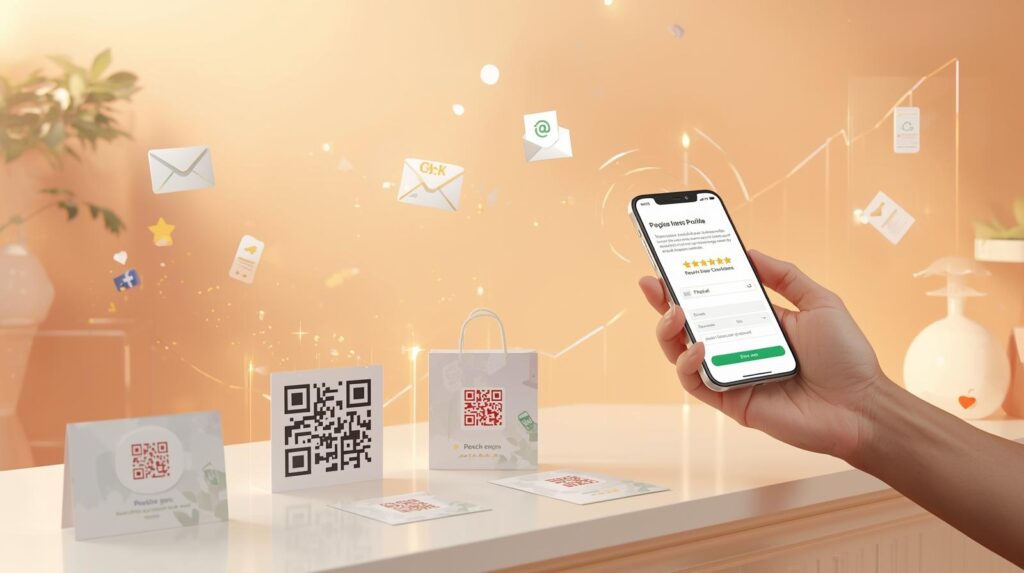
The Google Marketing Kit provides free, customizable, and printable materials—posters, stickers, and social media posts—to make asking for reviews effortless. By placing QR codes or links on these, customers can scan and leave feedback instantly.
Steps to Use the Marketing Kit:
Access the Kit: Visit marketingkit.withgoogle.com and sign in with your Google Business Profile to generate personalized materials.
Generate QR Codes & Links: Use the kit to create a direct review link or QR code.
Print and Display (Physical Business):
Example: Place a “Review Us” sticker on your front door, checkout counter, or restaurant table.
Example: Print postcards that say “Loved our service?” with a QR code and include them in shopping bags.
Use Digital Assets (Online Business):
Example: Download the pre-made social media graphics to share on Instagram or Facebook with a caption like, “Share your experience!”.
Example: Add the “Review Us” link to your email signature
Key Tips:
Ask Immediately: Ask for reviews right after providing great service.
Respond Promptly: Reply to all reviews, positive or negative, to show customer feedback matters.
Simplify: Use short, direct links (bit.ly) for text messages
19. Use Meta Ads to Increase Google Reviews
You can use Meta (Facebook/Instagram) ads to promote Google Reviews, which will increase brand awareness and drive traffic to your Google Business Profile. However, you cannot pay for, promote, or manipulate reviews. These ads are intended to reach existing customers so they can share their authentic experiences while adhering to Google policies.
Aloud (encouraging reviews): Run ads that feature positive customer stories, showcase your high ratings, or highlight the importance of feedback to your local business. You can direct users to your Google Business Profile to “Share Your Experience.”
Prohibited (fake/profitable reviews): Offering discounts, cash, or free products in exchange for reviews is strictly against Google policy.
Strategy: Use meta ads to build brand loyalty and brand awareness among your audience. By staying top-of-mind, satisfied customers are more likely to voluntarily leave positive reviews on your Google listing.
20. Traditional Marketing to Increase Google Reviews
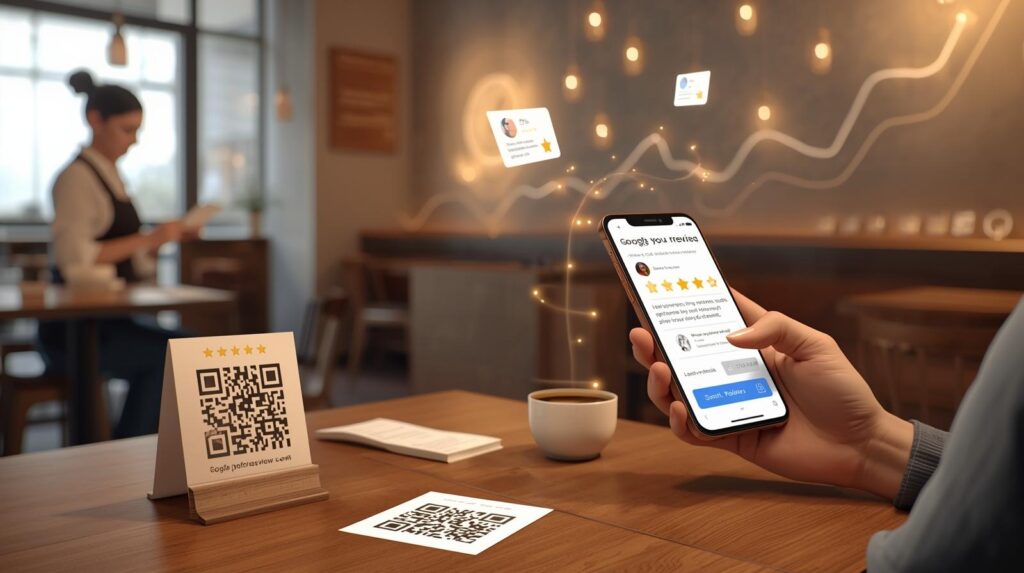
You can certainly increase your Google reviews through traditional, “offline” marketing. Although Google reviews are digital, the motivation to leave them can come from real, face-to-face interactions.
In simple terms, traditional marketing acts as a bridge, prompting happy customers to take a moment to share their experience online before they forget.
The core concept is bridging the gap: using physical touchpoints (paper, in-person interaction) to nudge customers toward the digital action of leaving a review.
How it Works:
Deliver Great Service: The foundation is always providing a great, memorable experience.
Make it Easy: Customers are busy. Don’t just ask for a review; make the process take 10 seconds or less.
Bridge the Gap: Use physical materials (cards, signs) with a QR code that goes directly to your review page.
Train Your Staff: Train employees to mention the review request during the “happy moment” (e.g., when a customer says “Thank you” or is paying).
Example Scenario: A Local Café:
Imagine you own “The Coffee Corner.” You want more Google reviews. Here is how you use traditional marketing to get them:
The Table Tent (Physical Signage):
Action: Put a small tent card on every table.
Text: “Loved your coffee? Scan to leave a quick 5-star review and help a local business!”
The Link: A large, easy-to-scan QR code.
The “Receipt” Technique (In-Person Ask):
Action: When the barista brings the bill, they say, “I hope you enjoyed your lunch! If you have 30 seconds, scanning this code on your receipt to leave a Google review helps us a lot.”
The “Thank You” Card (Take-home):
Action: Put a small card inside every take-out bag.
Text: “Enjoyed your coffee at home? Please let us know how we did on Google!” (with a QR code).
Why this works:
Traditional, in-person requests feel more personal and sincere than an automated email. By providing a QR code, you eliminate the “friction” of the customer having to search for your business on their phone.
Key Reminder: According to Google guidelines, you cannot offer incentives (discounts/freebies) in exchange for reviews, but you can definitely ask for them.
21. What you shouldn't do

To increase your Google reviews, it’s important to follow Google’s rules. Trying to cheat the system often results in your reviews being deleted or your business listing being suspended.
Never offer rewards:
Don’t offer money, discounts, free products, raffle entries, or gift cards in exchange for reviews.
Why: Google considers this “fake engagement” because it makes the review appear biased, not honest.
Punishment: Google may delete all your reviews and suspend your profile.
Never buy fake reviews:
Don’t pay a company or individual to write a positive review, and don’t ask friends/family who have never used your service to leave a review.
Why: Google’s AI is very smart and can spot fake, non-customer, or suspicious accounts.
Punishment: Reviews will be deleted, and you could lose your entire business listing.
Never use “review gating”:
Ask for reviews from happy customers and don’t ignore or hide negative feedback. Don’t use surveys to filter customers for reviews.
Why: Google wants all customers to have an equal opportunity to provide feedback, whether positive or negative.
Punishment: If caught, Google may remove all your reviews.
Never set up a “review station”:
Don’t set up an iPad or computer at the front desk so customers can leave reviews before leaving.
Why: Because all reviews come from the same IP address (your store’s Wi-Fi), Google considers them fake, even if they’re real.
Punishment: Google finds out very quickly and can remove all your reviews.
Never specifically ask for a “5-star review”:
Don’t tell customers, “Please leave us a 5-star review.”
Why: You should ask for an honest review, not a specific rating.
Instead: Say, “Would you like to leave us a review?” or “Please share your experience on Google.”
Never use an employee to write a review:
Don’t ask your staff or their family members to review your business.
Why: This is a conflict of interest and violates Google’s policy on real experiences.
Don’t ask for all reviews at once:
Don’t send a blast email to 500 customers in a single day asking for reviews.
Why: A sudden, massive increase in reviews looks like a “review bomb” to Google’s filters, which can hide them.
Instead: Ask for reviews gradually, over time, as the work progresses.
Don’t ignore or fight negative reviews:
Never delete, ignore, or even get angry at negative reviews in your response.
Why: A mix of reviews is more trustworthy than a perfect 5.0 rating. Responding to a bad review professionally shows potential customers that you care.
Conclusion
The importance of Google reviews can’t be underestimated for businesses looking to grow online. Google reviews build trust, improve local SEO rankings, and influence customer purchasing decisions. When potential customers search for products or services, positive reviews boost trust and encourage more clicks, calls, and visits. A strong review profile on your Google Business Profile not only increases visibility in local search results but also helps convert searchers into paying customers.
Don’t let your competitors win just because they have more reviews. Start building a strong review strategy today and make happy customers your biggest marketing asset. Realize the importance of Google reviews, take action now, and watch your visibility, trust, and sales soar.
Contact us today for all services related to setting up and optimizing your Google Business Profile.